The scale & the topbar
The topbar holds the global scale — the three numbers every view reads from — plus the view switcher, the main menu, help, and language. It is always visible: whatever you are editing, the scale that governs it is one glance away.

The scale controls

- Scale — a preset list of musical ratios: Minor 2nd (1.067) up through Octave (2.0). Picking a preset sets the ratio; the fields update to match. Picking Custom … moves the cursor straight into the ratio field.
- Ratio — the multiplier between full scale steps, written as a pair.
- Notes — how many steps each ratio jump is divided into (1–12). More notes = a denser scale with the same proportional skeleton.
- Base — the anchor value in pixels (10–24). Body text size, the origin of every ramp, and the source of the baseline unit (base ÷ 2).
- Step — a read-only display of the effective multiplier between
adjacent scale values:
ratio^(1/notes). With ratio 1.5 and 2 notes, each step is ×1.225.
The ratio pair
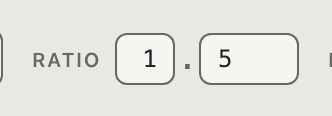
The ratio is entered as two fields — integer and decimals — rather than
one decimal number. Type 1 and 5 and the preset list shows Perfect
5th; type 1 and 34 and it shows Custom …. The pairing sidesteps
decimal-separator friction (dot vs comma) and makes preset matching
visible: whenever the pair composes to a known interval, the interval’s
name appears in the list. Typing . or , in the integer field jumps to
the decimals field, so 1.34 can be typed in one motion, and pasting a
full decimal number splits it across both fields.
All the numeric fields step with ↑ / ↓ — the tool’s convention
everywhere. Notes and base step by one; the decimals field steps in its
own precision (5 → 6 is 1.5 → 1.6, 333 → 334 is 1.333 → 1.334),
and stepping past 99 rolls over into the integer (1.99 → 2.0).
The main menu
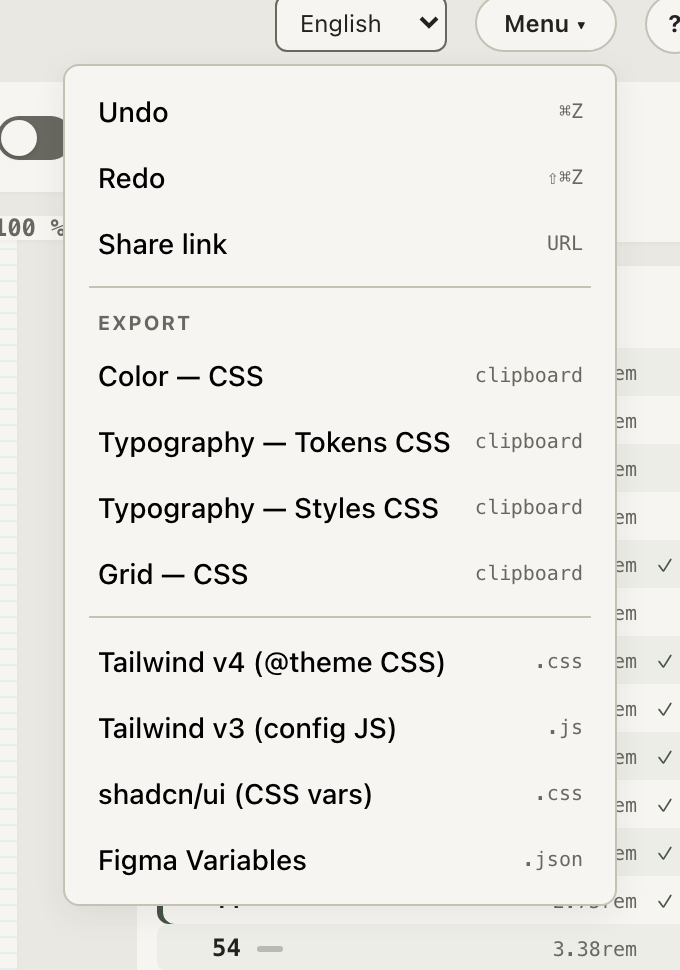
One menu gathers session actions and exports:
- Undo / Redo — session-wide history (⌘Z / ⇧⌘Z). Rapid changes like holding an arrow key coalesce into one step.
- Share link — encodes the entire session into the URL and copies it. See sharing.
- Export — quick clipboard exports per view (color CSS, typography CSS, grid CSS) and full-system files: Tailwind v4 and v3, shadcn/ui, Figma Variables. See exports.
Help and keyboard reference
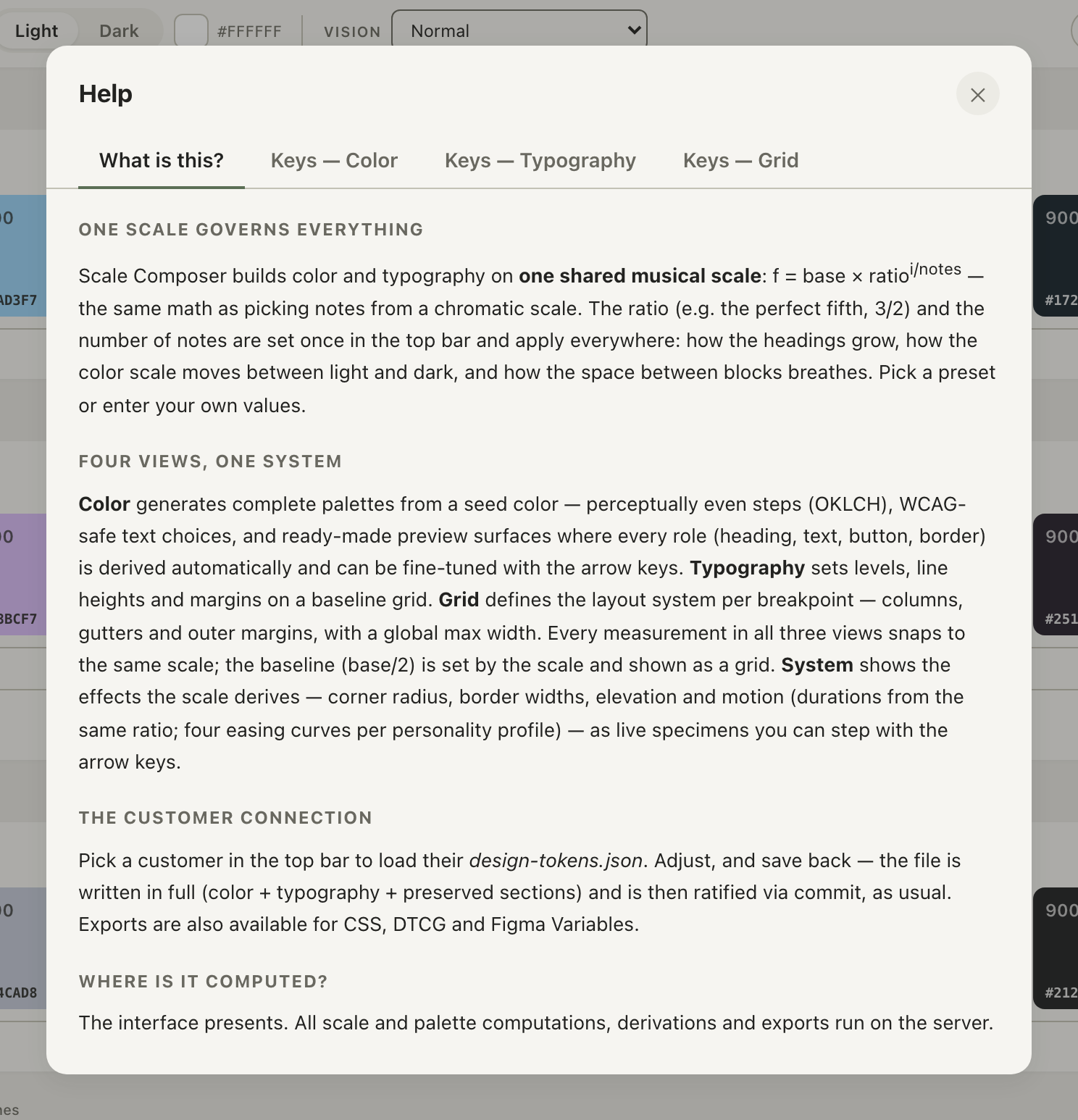
The ? button opens the help modal: what the tool is, and a per-view keyboard reference. The conventions are consistent everywhere — arrow keys step the selected thing along the scale, Shift modifies (bigger steps, or a related property), Enter/Escape commit and close.
The tool ships in English, Swedish, Spanish, and Chinese — the language menu sits next to the main menu. Editable content you have already written (specimen text, breakpoint labels) is yours and is never touched by a language switch.